

Download heShot – Free Screen Capture Tool for Windows & Mac with Simple Editing Features
heShot is a lightweight, user-friendly screen capturing tool designed for quick and efficient screenshot capture on both Windows and Mac systems. Ideal for users who need to capture images from their screen and make minor edits—such as highlighting key areas or applying filters—this free software offers a no-frills approach to screen capture. With minimal setup and intuitive controls, heShot allows you to capture either your entire screen or just the active window with a single click.
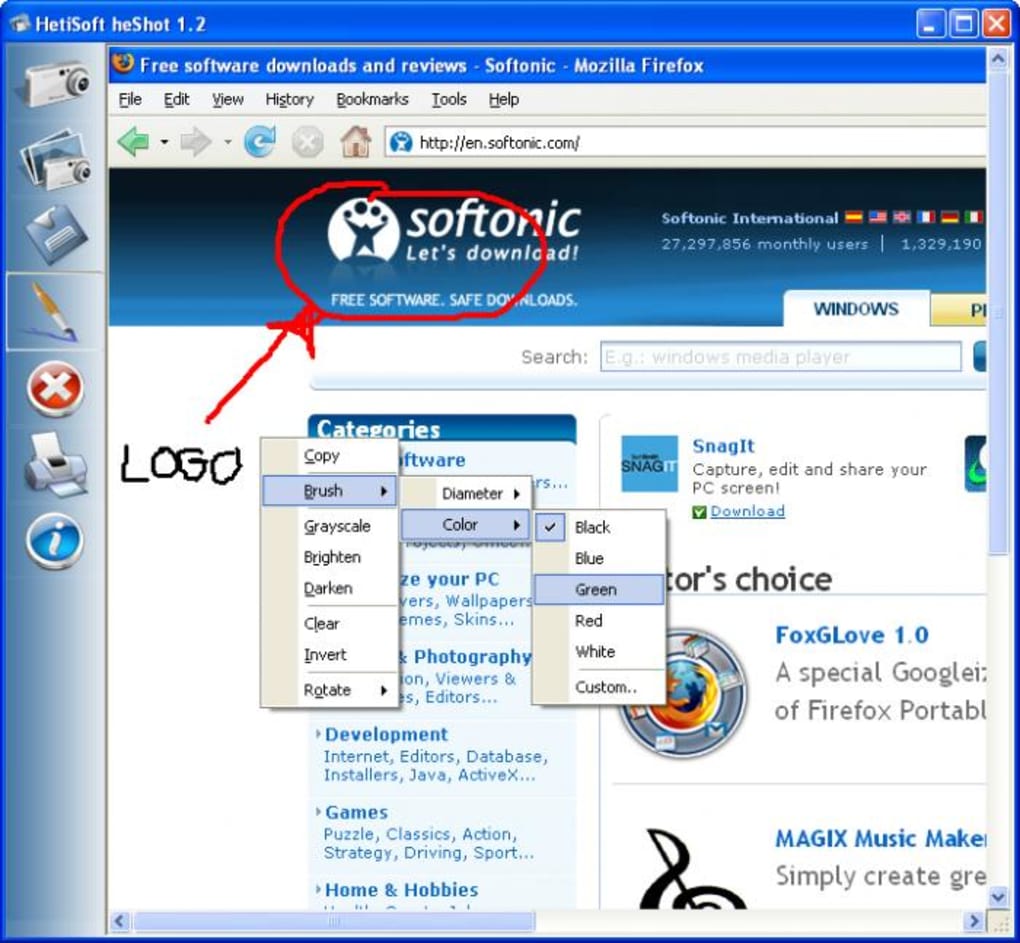
The tool includes basic editing features like a brush for annotations, grayscale filter, brightness/darkness adjustment, and image rotation. While it’s perfect for simple tasks like pointing out details in a tutorial or marking errors in a document, it does come with some limitations—most notably, it only saves files in BMP format and lacks an Undo function. Despite these constraints, heShot remains a solid choice for users who value simplicity and speed over advanced functionality.
Key Features of heShot
heShot stands out in the crowded field of screen capture tools thanks to its minimalistic design and straightforward functionality. The core feature is the ability to capture either the full screen or just the active window—ideal for quick documentation, troubleshooting, or sharing visual content. Once captured, users gain access to a small but useful set of editing tools.
The brush tool allows you to draw directly on the screenshot, making it perfect for highlighting important sections, adding arrows, or writing notes. For a more professional look, the grayscale filter helps reduce visual clutter and focus attention on specific areas. Additionally, the brightness and contrast controls let you adjust the image’s visibility, ensuring clarity even in poorly lit screens.
The rotate tool is a small but appreciated addition, allowing you to correct orientation issues with just a few clicks. These tools are accessible via a context menu, which, while functional, can feel less intuitive than a dedicated toolbar. Despite this, the overall interface remains clean and uncluttered, minimizing distractions.
Another standout feature is the software’s portability—no installation is required, meaning you can run heShot directly from a USB drive or folder. This makes it an excellent choice for users who frequently switch between devices or prefer not to clutter their system with permanent software. While it doesn’t support advanced features like video recording, GIF creation, or cloud sharing, heShot excels in its niche: fast, secure, and simple screen capture with basic editing.
How to Install and Use heShot
Getting started with heShot is incredibly simple, making it accessible even for users with minimal technical experience. Since it’s a portable application, you don’t need to go through a traditional installation process. Simply visit the official website, download the latest version compatible with your system (Windows or Mac), and extract the files to a folder of your choice.
Once extracted, double-click the executable file to launch the program. No admin rights or setup wizard are required—just run it and you’re ready to capture. To take a screenshot, press the designated hotkey (usually Ctrl + Shift + S on Windows or Cmd + Shift + S on Mac) or click the capture button within the app window.
You’ll be presented with two options: capture the entire screen or only the active window. After selecting your choice, the screenshot appears instantly in the editing panel. From here, you can use the context menu to access tools like the brush, grayscale filter, brightness adjustment, and rotation.
Clicking on any tool activates it, and you can begin annotating or modifying the image. Once satisfied, click the “Save” button to store your file. Remember, heShot only saves in BMP format, so if you need a different file type (like PNG or JPG), you’ll need to convert it using another tool.
The process is seamless, and the software runs efficiently without consuming significant system resources. For frequent users, the lack of a customizable hotkey or batch capture feature may be a minor drawback, but the simplicity ensures that the tool remains fast and reliable.
Compatibility and System Requirements
heShot is designed to work smoothly across multiple platforms, making it a versatile choice for both Windows and Mac users. The software supports Windows 7 and later versions, including Windows 10 and Windows 11, ensuring compatibility with the majority of modern desktop systems. On the Mac side, it runs on macOS 10.12 (Sierra) and newer, covering most Apple devices currently in use.
This broad compatibility means you can use heShot whether you're on a work laptop, home desktop, or even a newer MacBook. The application is lightweight, requiring minimal RAM and CPU usage, so it won’t slow down your system even during extended use. It doesn’t require any additional dependencies or frameworks, which enhances its portability and security.
Since heShot is distributed as a standalone executable, it doesn’t modify your registry or install background services—making it a safe choice for users concerned about privacy and system integrity. Additionally, because it’s free and open to download from the official site, you can trust that you’re getting a secure version without hidden ads or bundled software. Whether you’re using a high-end workstation or an older machine, heShot delivers consistent performance.
For users on Android or iOS, unfortunately, there is no native version available, but similar functionality can be achieved through built-in screen recording tools or third-party apps. Overall, heShot’s cross-platform support and low system demands make it a reliable option for everyday screen capture needs.
Pros and Cons of heShot
- Pros:
- Free to download and use with no hidden costs
- Lightweight and fast, with minimal impact on system performance
- Simple, intuitive interface ideal for beginners
- Portable—no installation required, perfect for USB drives
- Quick capture with hotkey support
- Basic editing tools like brush, grayscale, brightness, and rotation
- Cons:
- Only saves files in BMP format (no PNG, JPG, or GIF support)
- Lacks an Undo function, making mistakes hard to correct
- Editing tools accessed via context menu, not a visible toolbar
- No video recording or GIF creation features
- No built-in sharing or cloud integration
Frequently Asked Questions (FAQ)
- Is heShot free to download?
Yes, heShot is completely free to download and use. There are no trial periods or premium features locked behind a paywall. You can access all core functions—screen capture and basic editing—without any cost.
- Can I use heShot on Mac and Windows?
Yes, heShot is available for both Windows (7 and later) and macOS (10.12 and above), making it a cross-platform solution for users on different operating systems.
- Does heShot support saving screenshots in PNG or JPG format?
No, heShot only saves captured images in BMP format. If you need other formats, you’ll need to convert the file using an image editor or converter tool.
- Is there an Undo feature in heShot?
Unfortunately, heShot does not include an Undo function. If you make a mistake during editing, you’ll need to start over with a new screenshot.
- Can I customize the hotkey for capturing screenshots?
The default hotkey is set to Ctrl + Shift + S (Windows) or Cmd + Shift + S (Mac), but there is no built-in option to change it. This may be a limitation for users who prefer different key combinations.
- Is heShot secure to download?
Yes, as long as you download heShot from the official website, it is safe and free from malware or bundled software. The portable nature of the app also reduces security risks.
Final Verdict and Call to Action
heShot is a no-nonsense screen capture tool that excels in simplicity and speed. While it lacks advanced features like video recording, multi-format export, or an Undo option, its core purpose—capturing and lightly editing screenshots—is executed well. It’s perfect for students, teachers, support staff, or anyone who needs to quickly highlight elements in a screen without getting bogged down by complex menus.
If you value a clean, distraction-free experience and don’t need to share or store images in common formats, heShot is a solid choice. For power users seeking more flexibility, alternatives like LightShot or FastStone Capture may offer better value. However, for basic, secure, and fast screen capture, heShot delivers exactly what it promises.
Download heShot today from the official website and experience a lightweight, free screen capture solution that just works.







